

PDF SEO: Why AI Skips the Specs in Your Product Catalog

PDF SEO is the work of making the facts inside your PDF catalogs and spec sheets findable and readable. A search engine can index a PDF, but a spec that lives only inside one is easy for buyers and AI assistants to miss. Put each spec on a product page as text and a table, and keep the PDF as a download.
TL;DR
- Google can index PDFs, so the question for a manufacturer is where each spec lives. A spec that exists only inside a catalog PDF is hard for a buyer, a search engine, and an AI assistant to find and quote.
- In a live test during the Vx Group webinar, an AI assistant picked the suppliers with clear spec pages and passed over the one with specs only in a PDF and the one with no page for the search.
- Sort every PDF into one of three piles: convert it to a page, keep it as a download, or retire it.
- Rebuild each spec sheet as a product page with a plain title, a spec block, and an HTML table with units in the column headers.
- Keep the PDF as a download beneath the table, name the file after the product, and make sure its text can be selected.
- Test the result with ten buyer prompts in two AI assistants before and after the change.
Walk through a manufacturer’s website and you will find the same thing in almost every folder: a catalog PDF with hundreds of pages, a spec sheet for each product line, and a capabilities brochure that sales emails to anyone who asks. Those files hold the facts a buyer needs to pick you. They also sit in the one format that gives a search engine and an AI assistant the least to work with.
This guide shows owners and leadership teams of privately held B2B manufacturers and distributors how to turn a PDF catalog into pages that buyers and AI assistants can read and quote. It follows five steps: find every PDF, sort them, rebuild the ones that matter as pages, handle the ones that stay online, and test the result. Our guides on SEO for manufacturing companies and LLM SEO cover the wider picture. This one stays on the catalog.
What is PDF SEO, and are PDFs bad for SEO?
PDF SEO is the practice of making the content in PDF files findable in search and usable by AI assistants. Google indexes PDFs, and a PDF can even outrank the web page that links to it. The weakness is what a PDF lacks compared with a web page.
Defined Term: PDF SEO.
The work of making the facts inside PDF files, such as catalogs, spec sheets, and brochures, easy for search engines and AI assistants to find, read, and use. For a manufacturer it usually means moving specifications onto web pages and managing the PDFs that remain.
Semrush shows about 1,300 monthly US searches for “pdf seo,” and most of the pages that rank for it ask whether PDFs hurt your site. The common answer is that a PDF can rank but offers a weak reading experience on a phone, no site navigation around it, limited tracking, and no page markup that helps a search engine understand it. We agree with that read and add the part that matters to a manufacturer: the product facts buyers filter on are usually the facts locked in those files.
The table below compares the same content in each format.
| Element | In a PDF catalog | On a product page |
|---|---|---|
| Title a reader or crawler sees | A file name, or the first line of page one | A page title and a heading that name the product |
| Spec table | Often a picture of a table, with no text behind it | A real table with units in the column headers |
| Headings and structure | None a machine can follow | H2 and H3 headings that match buyer questions |
| Links to related products | Rarely present | Internal links to related pages and to the quote form |
| Updating a spec | Reissue the file, and old copies keep circulating | Edit the page once |
| What you can measure | Downloads, at best | Visits, search queries, and inquiries from the page |
Nobody needs to delete the PDF. The fix is to make sure each important fact also lives on a page.
Why does AI skip the specs in your product catalog?
An AI assistant skips specs in a catalog PDF for three reasons: the file may have no readable text, one file mixes hundreds of products with no clear heading for each, and the assistant is comparing suppliers whose pages state the same facts in plain text. A supplier whose facts are easy to read gets named, and the others drop out of the answer.
At the Vx Group webinar on October 21, we ran a live test. An AI assistant was asked to choose among sample supplier pages for a buyer’s request. It picked the two pages that stated their specifications clearly and passed over two others: one with its specs only in a PDF, and one with no page for that search at all. The assistant treated “no readable page” and “no page” in much the same way.
Three problems sit behind that result.
- No text to read. A scanned or exported catalog can hold a spec table as an image. A person sees a table, and a machine sees a picture.
- No clear title for each product. A 200-page file has one title, usually the name of the catalog. A buyer’s question about one valve or one housing has nothing to match.
- A weaker case against pages that state everything. The assistant compares suppliers. A competitor who wrote the tolerance, material, and lead time in a table has handed the assistant three facts. Your PDF may hand it none.
Some assistants can open PDFs, and results vary from file to file and from tool to tool. Treating the PDF as the only home for a spec leaves the outcome to chance.
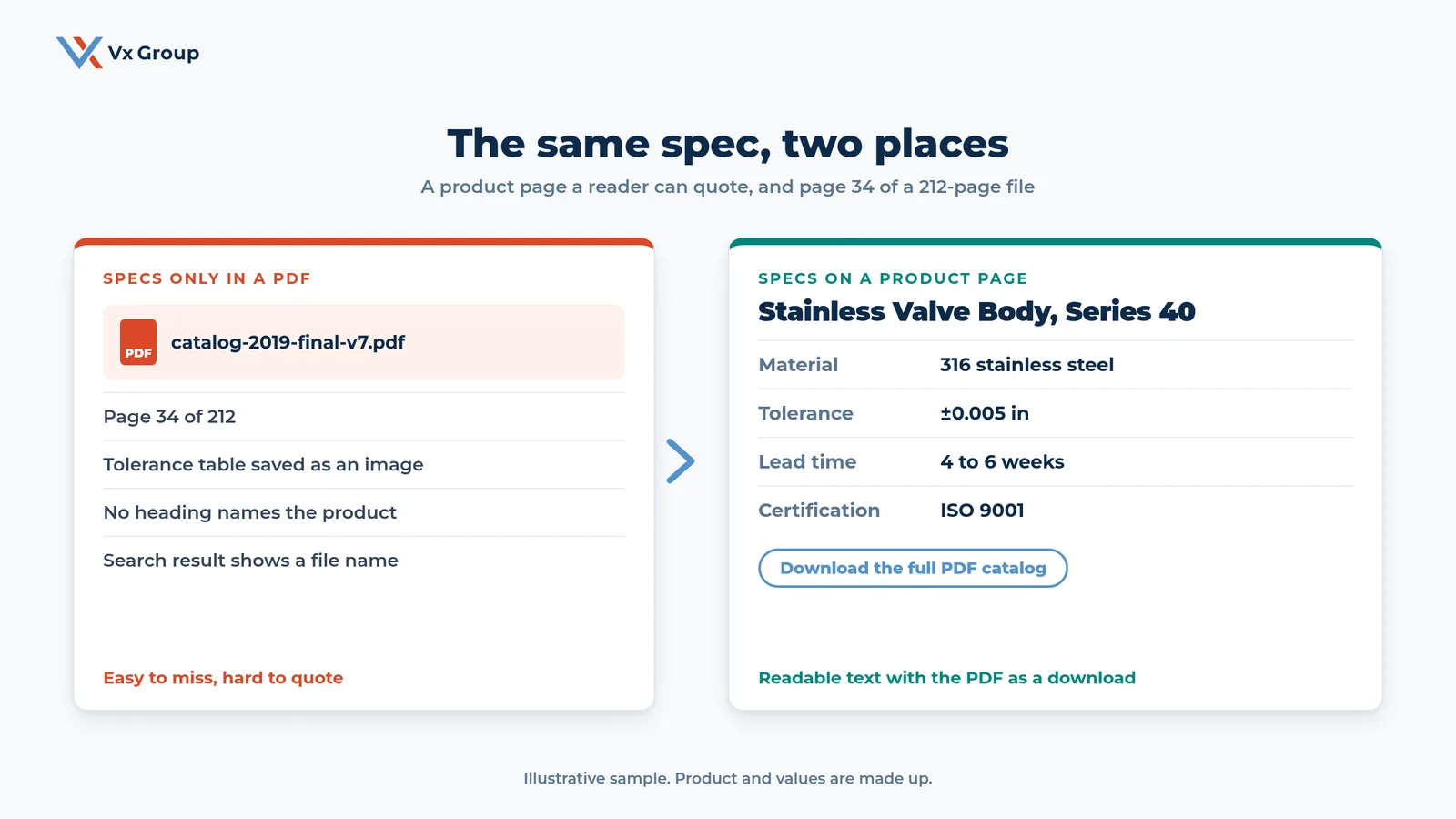
The product and values in the graphic are made up for illustration. The pattern is real: the same four facts either sit inside a file that gives a reader nothing to quote, or sit on a page where each one can be lifted into an answer.
Field Notes:
Picture a valve manufacturer with a 212-page catalog PDF that sales has emailed for years. A buyer asks an AI assistant for 316 stainless valve bodies from an ISO 9001 shop with a lead time under six weeks. The catalog holds all three facts, but the tolerance table is an image and no page on the site names the product series. The assistant names two competitors whose pages state the material, the certification, and the lead time. This is a sample scenario, and the fix starts with one product family.
Step 1: How do you find every PDF on your website?
You find every PDF by searching your own domain for PDF files, pulling the list of PDF pages from your analytics, and recording each file in a sheet. Most manufacturers discover files they forgot: old editions, regional versions, and sheets uploaded by a rep years ago.
Search your own domain for PDF files
Type `site:yourcompany.com filetype:pdf` into Google, with your own domain, and scroll through the results. Each result is a PDF that Google can show to a buyer. Write down the file name and the address. Then ask your sales team which PDFs they email most often, because some live outside the website’s public pages.
Pull the PDF list from your analytics
In Google Search Console, open the performance report for the last 12 months and filter pages that contain “.pdf.” This shows which files appear in search and which draw clicks. In your analytics tool, filter for the same file type and note which files get downloaded. A PDF that earns clicks from search is already doing a job, so handle it carefully in Step 4.
Record each file in one sheet
Build a sheet with one row per file and these columns: file name, address, product family, last updated, search clicks, downloads, and decision. Leave “decision” empty for now. A company with a long history often finds a few dozen files at this stage, and some find several hundred. The sheet turns a vague worry into a list you can finish.
Step 2: How do you decide which PDFs to convert, keep, or retire?
Decide by asking what a buyer needs from each file. If a buyer needs a fact from the file to pick you, convert it to a page. If a buyer wants a file to save or print, keep it as a download. If the file is outdated or duplicates another, retire it.
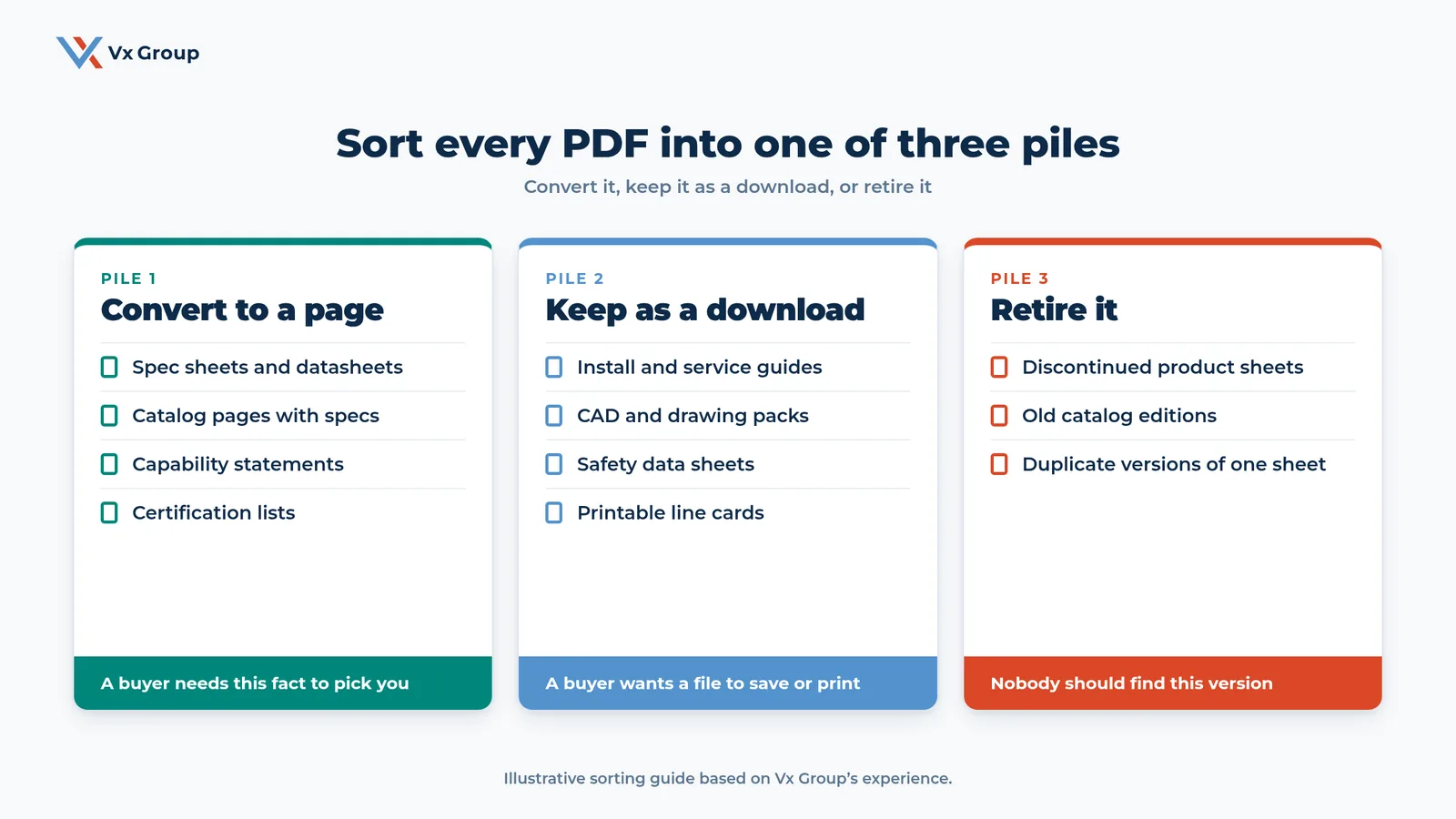
Sort each file into one of three piles
Work down the sheet and write one word in the decision column: convert, keep, or retire. Use the table below as a starting guide.
| Type of file | Usual decision | Reason |
|---|---|---|
| Spec sheets and datasheets | Convert | Buyers filter suppliers on these facts |
| Catalog pages that carry specs | Convert | Each product needs its own page |
| Capability statements and certification lists | Convert | Buyers and assistants check these early |
| Installation and service guides | Keep | Customers want a file to save or print |
| CAD and drawing packs | Keep | Engineers download these for their own systems |
| Safety data sheets | Keep | Required documents that people look up by name |
| Discontinued product sheets | Retire | An old spec can mislead a buyer |
| Old catalog editions and duplicates | Retire | Two versions of one fact create doubt |
Some files fit two piles. A spec sheet is a conversion candidate and also a handy download, so convert it and then keep the PDF as a link on the new page.
Rank the converts by revenue and pick three product families
Add a column with the annual revenue of the product family each file describes. Sort by that column and mark the top three families. Those are your first conversions. Three families give you a template to reuse, and they cover the products most likely to come up in a buyer’s request.
Ask sales which sheets they send most
The sales team sends the files buyers ask for. Ask each person for the two PDFs they attach most often to quotes and emails. If a file appears on several lists, it moves to the front of the line. A buyer who pastes your emailed spec sheet into an AI assistant is already testing it. Our guide to the B2B buying committee shows who else reads those files before a deal closes.
Ready to grow?
Bring your sorted PDF sheet and see which product families to rebuild first.
Step 3: How do you turn a PDF spec sheet into a page AI can quote?
Turn a spec sheet into a page by giving the product family one page, opening with a short block of the facts a buyer filters on, rebuilding the spec table as a real HTML table, and adding a few plain sentences that answer a buyer’s question. Then link the PDF beneath the table as a download.
Give each product family one page and one plain title
Write the page title the way a buyer would say it: the product, the material, and the buyer or use. “Stainless Steel Valve Bodies, Series 40, for Food Processing” works better than “Series 40 Overview.” Use the same wording in the page heading. If a catalog page covers six unrelated products, create six pages and link them together.
Open with a spec block of the facts a buyer filters on
Place a short block of lines at the top of the page that states, in text:
- Material or materials
- Size range or dimensions
- Tolerance
- Certifications
- Typical lead time
- Minimum order, where you have one
Our guide on SEO for manufacturing companies walks through the details a manufacturing page should state and why each one matters. Use only facts you can document, and keep them current.
Rebuild the spec table as an HTML table
Retype the table from the PDF into a real table on the page. Put units in the column headers, for example “Tolerance (in)” and “Working pressure (psi),” and use one row per model. Never paste a screenshot of the table. If the source table is large, split it by model group so each table fits on a screen.
Here is the shape of a rebuilt table, using made-up values:
| Model | Material | Tolerance (in) | Lead time (weeks) | Certification |
|---|---|---|---|---|
| Series 40-A | 316 stainless steel | plus or minus 0.005 | 4 to 6 | ISO 9001 |
| Series 40-B | 304 stainless steel | plus or minus 0.010 | 3 to 5 | ISO 9001 |
Write three sentences a buyer's prompt would match
Under the table, write three short sentences. The first says who the product is for. The second says what it is made from and to what standard. The third says where you ship from and in what quantities. For example: “Series 40 valve bodies serve food and beverage processors that need washdown-grade stainless. They are machined from 316 or 304 stainless steel to plus or minus 0.005 inch. We ship from Dayton, Ohio, in runs from 50 to 5,000.” Replace the sample details with your own.
State lead time and what drives price
Add one line for lead time and one for what moves the price: material, tolerance, volume, and finish. You do not have to publish a price list. An assistant asked to explain your quote will use whatever it can find, so give it your explanation. Our guide to sales follow-up email applies the same logic to what you send after a first meeting.
Link the PDF as a download beneath the table
Place a plain link under the table, such as “Download the Series 40 spec sheet (PDF).” Buyers who want a file still get one, and the page carries every fact as text. The link also gives search engines a clear path between the page and the file.
Step 4: How do you handle the PDFs that stay online?
For PDFs that stay online, name each file after its product, confirm that its text can be selected, point search engines to the page when the PDF duplicates it, and send retired files to the page that replaced them. These steps keep the old files from competing with, or contradicting, the new pages.
Rename each kept PDF after the product
Change a file name like “catalog-2019-final-v7.pdf” to a name a person can read, such as “series-40-valve-body-spec-sheet.pdf.” Use lowercase words separated by hyphens. Also fill in the document title in the file’s properties so a search result shows a real title.
Run the select-text test on every kept file
Open each kept PDF and try to highlight a line of the spec table with your cursor. If the highlight covers the whole table as one block, or nothing highlights, the table is an image. Ask whoever made the file to export it again from the original document. A file with real text serves readers who use screen readers and gives any tool that opens it something to read.
Point search engines to the page when the PDF duplicates it
When a PDF and a product page carry the same content, you want the page to be the main result. Ask your web developer to add a canonical link for the PDF in the file’s HTTP header that points to the product page. This is a supported way to tell Google which version you prefer. For files that should not appear in results at all, ask for a “noindex” instruction in the file’s HTTP header.
Redirect retired files to the page that replaced them
For every file in the retire pile that earns search clicks or has links from other sites, ask your developer to set a permanent redirect from the old file address to the closest product page. Buyers who saved the old link land on current information. Files with no clicks and no links can simply come down.
Step 5: How do you test that AI can now read your specs?
Test it by writing ten buyer prompts that name specs, running them in two AI assistants before the change and again a few weeks after, and recording whether your company is named. The comparison shows which pages worked and which facts are still missing.
Write ten prompts that name real specs
Draft ten prompts in your buyers’ words, each carrying several requirements from your spec block: material, tolerance, certification, quantity, region, and deadline. Cover your top three product families first. Save the list in a spreadsheet and keep the wording fixed. Our LLM SEO guide explains how assistants break a prompt apart and check suppliers against each requirement.
Run them in two assistants and log the result
Run all ten in two different AI assistants and record, for each prompt, whether your company was named, whether the description was accurate, and which competitors appeared. Do this before you publish the new pages to get a baseline, and again a few weeks later.
| Prompt | Assistant | Named before | Named after | Competitors named |
|---|---|---|---|---|
| Prompt 1 | Assistant A | Yes or no | Yes or no | List them |
| Prompt 1 | Assistant B | Yes or no | Yes or no | List them |
Read each miss as a missing fact
For every prompt where a competitor is named and you are absent, compare the prompt to your page and find the requirement your page does not state. Add it as text, and re-run the prompt after a few weeks. This is the same loop described in our guide to SEO vs AEO.
What mistakes do manufacturers make with PDF catalogs?
The most common mistakes are deleting useful PDFs, leaving the only copy of a spec in a file, pasting spec tables as screenshots, and letting old editions stay online. Each one is easy to find in the Step 1 sheet.
- Deleting every PDF. Buyers and engineers still want files to save and print. Keep them as downloads on the page.
- Converting the cover and skipping the specs. A page that describes the product in slogans and leaves the tolerance table in the PDF has the same gap as before.
- Pasting screenshots of tables. A picture of a table gives a machine nothing to read. Retype it.
- Leaving old editions online. Two catalogs that disagree on a lead time or a certification make a buyer, or an assistant, doubt both.
- Writing a page for each file. One product family gets one page. A 200-page catalog becomes a set of product-family pages, with links between them.
- Converting once and never checking. Specs change, and so do certifications. Review the top pages each quarter, with the same ten prompts.
- Treating it as a website project for someone else. The facts come from your engineers and your sales team. Your web person can build the page, but only your people know the lead time and tolerance to publish.
Where should an owner start this month?
Start with a four-week plan: find the PDFs in week one, sort them and pick three product families in week two, rebuild those three families as pages in week three, and test with ten prompts in week four. The plan needs no new software and a small amount of time from your sales lead and one engineer.
- Week one: Run the site search for PDF files, pull the list from Search Console, and fill in the sheet.
- Week two: Sort every file into convert, keep, or retire, rank the converts by revenue, and pick three product families. Run the ten-prompt baseline.
- Week three: Rebuild the three families as pages with a spec block, an HTML table, three plain sentences, lead time, and the PDF link. Rename the kept files and run the select-text test.
- Week four: Set canonical and redirect rules with your developer, then re-run the ten prompts a few weeks after the pages go live.
A catalog PDF holds years of work from your engineers and your sales team, and it deserves a place on your website where buyers and AI assistants can read it. Rebuild the first three families, check the result, and repeat the pattern on the rest. Search sits inside your wider plan for reaching buyers, and our guide to the B2B go-to-market strategy shows where it fits.
Ready to grow?
Share your three top product families and see how your pages answer a buyer’s prompt today.
FAQs
About the Author: David Tisdale
